Add MCP Tutor to ChatGPT
MCP Tutor is in ChatGPT's plugin directory. Install it, sign in once, and bring it into any chat with @.
Before you start
- A ChatGPT account. Plugins is in the sidebar on chatgpt.com and in the ChatGPT apps. Whether you can install plugins depends on your plan and workspace.
- On ChatGPT Enterprise or Edu, an admin first makes MCP Tutor available under Workspace settings → Plugins.
- About two minutes.
Install from the plugin directory
Go to MCP Tutor's plugin page
Open MCP Tutor in ChatGPT(opens in a new tab)
Or choose Plugins in ChatGPT’s sidebar and search for MCP Tutor, the full name.
Install it
Select Install plugin. If ChatGPT asks, select Connect.
Sign in to MCP Tutor
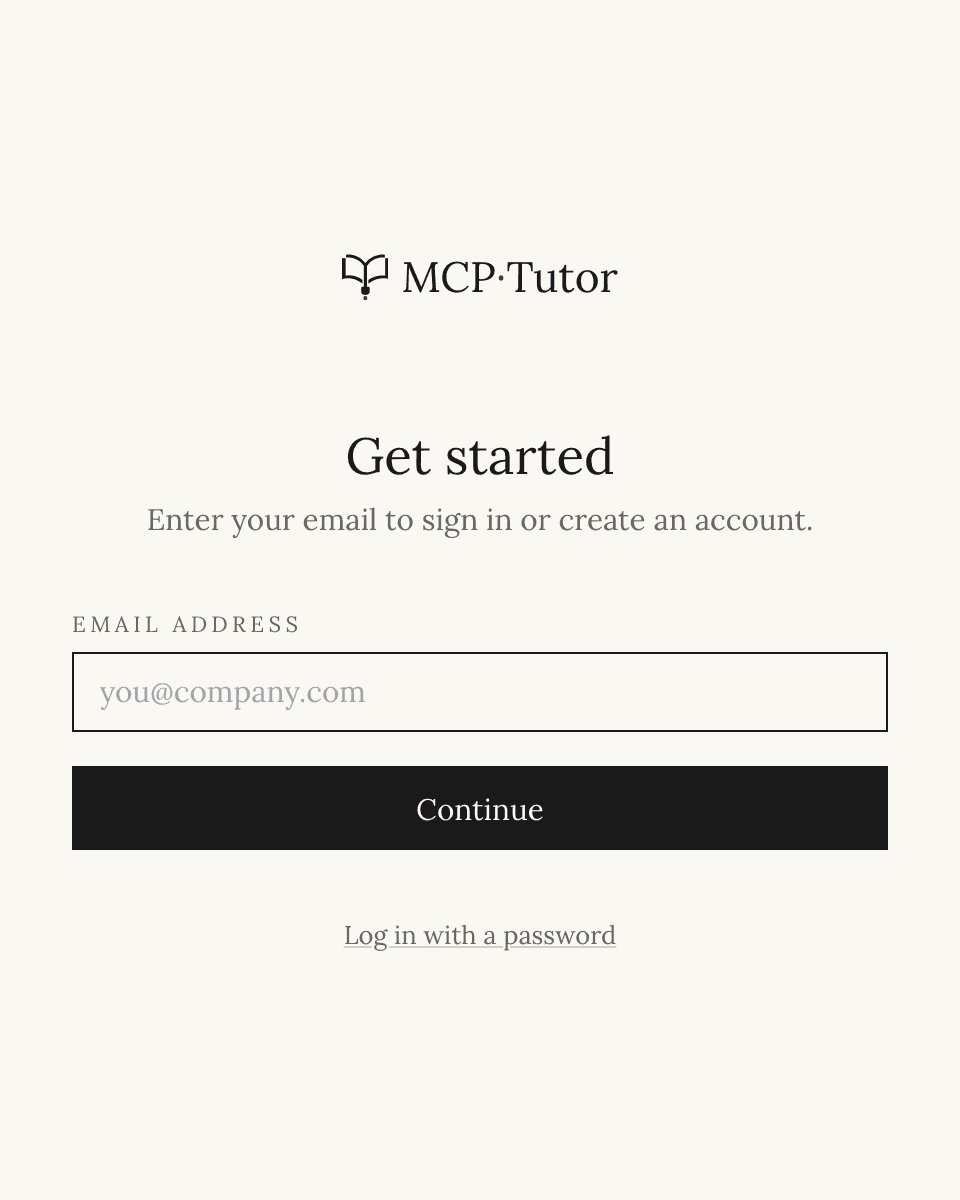
ChatGPT opens MCP Tutor’s sign-in page, either now or the first time you use MCP Tutor in a chat. Enter your email and the code we send you, or choose Log in with a password.
No MCP Tutor account yet? The same page creates a free one.
Opens the full-size screenshot Approve the connection
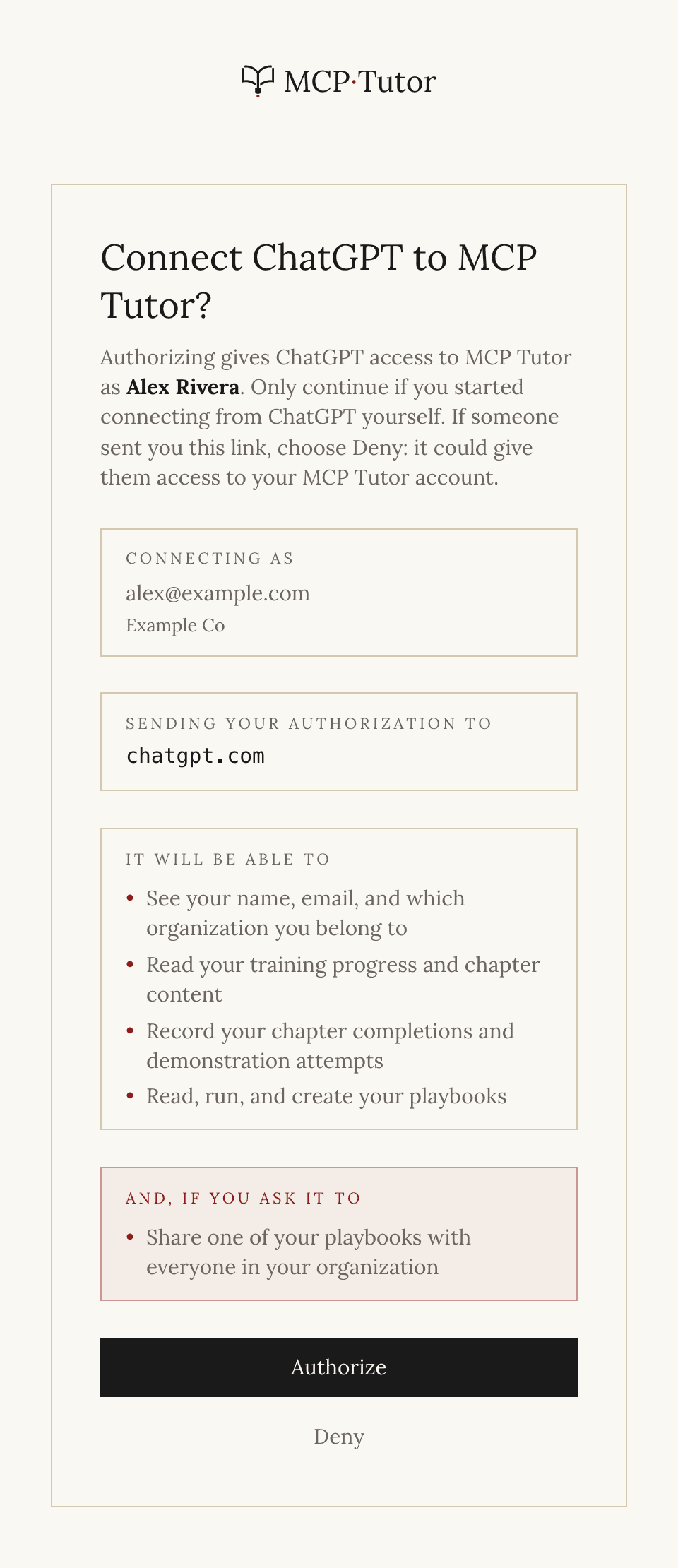
Check that MCP Tutor says it’s sending your authorization to chatgpt.com, then choose Authorize. That address is how you know the request really came from ChatGPT.
Opens the full-size screenshot Use it in a chat
In a new chat, type @ and choose MCP Tutor, then say what you’d like to do. ChatGPT may ask before MCP Tutor records something, such as a finished chapter: check what it’s about to send, then approve it.
For workspace admins: add it by URL
Everyone else should install the plugin above. Some workspaces build their own plugins from MCP servers instead: on Business, owners and admins can, and on Enterprise and Edu it’s a permission an admin grants. To do that, go to chatgpt.com/plugins, click +, choose Add custom MCP server, name it MCP Tutor, and paste this under Connection:
https://mcp.mcptutor.com/chatgpt/mcpSet authentication to OAuth with no client ID or secret, choose I understand and want to continue, then Create as a plugin, and install it. Sign-in and approval work as above.
Start learning
Say this in a new chat
“Start my training in MCP Tutor.”
Type @ and choose MCP Tutor first, so ChatGPT knows to use it. It finds your next chapter and starts teaching it.
If something goes wrong
- I can't find MCP Tutor in Plugins.
Search for the full name, MCP Tutor, in Plugins itself rather than asking ChatGPT to find it. On Enterprise and Edu, an admin has to make it available under Workspace settings → Plugins first.
- Opening the MCP Tutor address in my browser says “unauthorized”.
That’s expected. The address answers ChatGPT once you’ve signed in, not a browser. Install the plugin instead; you never need to open the address yourself.
- I don't see Add custom MCP server.
Your plan or workspace doesn’t let you create plugins from MCP servers. Install MCP Tutor from the directory instead.
- ChatGPT answers without using MCP Tutor.
Start a new chat, type @, and choose MCP Tutor before your message.
- It asks me to sign in again.
Open Plugins, find MCP Tutor, and connect it again with the same email.
Still stuck? Email support@mcptutor.com and tell us which step you’re on.