Add MCP Tutor to Perplexity
Add MCP Tutor as a custom connector from Plugins, sign in once, and Perplexity can use it in any thread.
Before you start
- Perplexity Pro, Max or Enterprise.
- In an Enterprise organization, an admin first turns on Allow members to add custom connectors, or adds MCP Tutor for everyone (admin steps).
- About two minutes.
Connect on perplexity.ai
Open Plugins
On perplexity.ai, choose Plugins in the sidebar. If you don’t see it yet, use Customize → Connectors; the steps are the same.
Add an MCP connector
Click Add custom, then Add MCP connector, and select Remote.
Fill in the details
Name it MCP Tutor and paste this as the MCP server URL:
https://mcp.mcptutor.com/perplexity/mcpUnder Advanced, set Authentication to OAuth. Leave the rest as it is, with no client ID or secret. Tick the acknowledgement box and click Add.
Start the sign-in
Select the new MCP Tutor card to sign in and switch it on.
Sign in to MCP Tutor
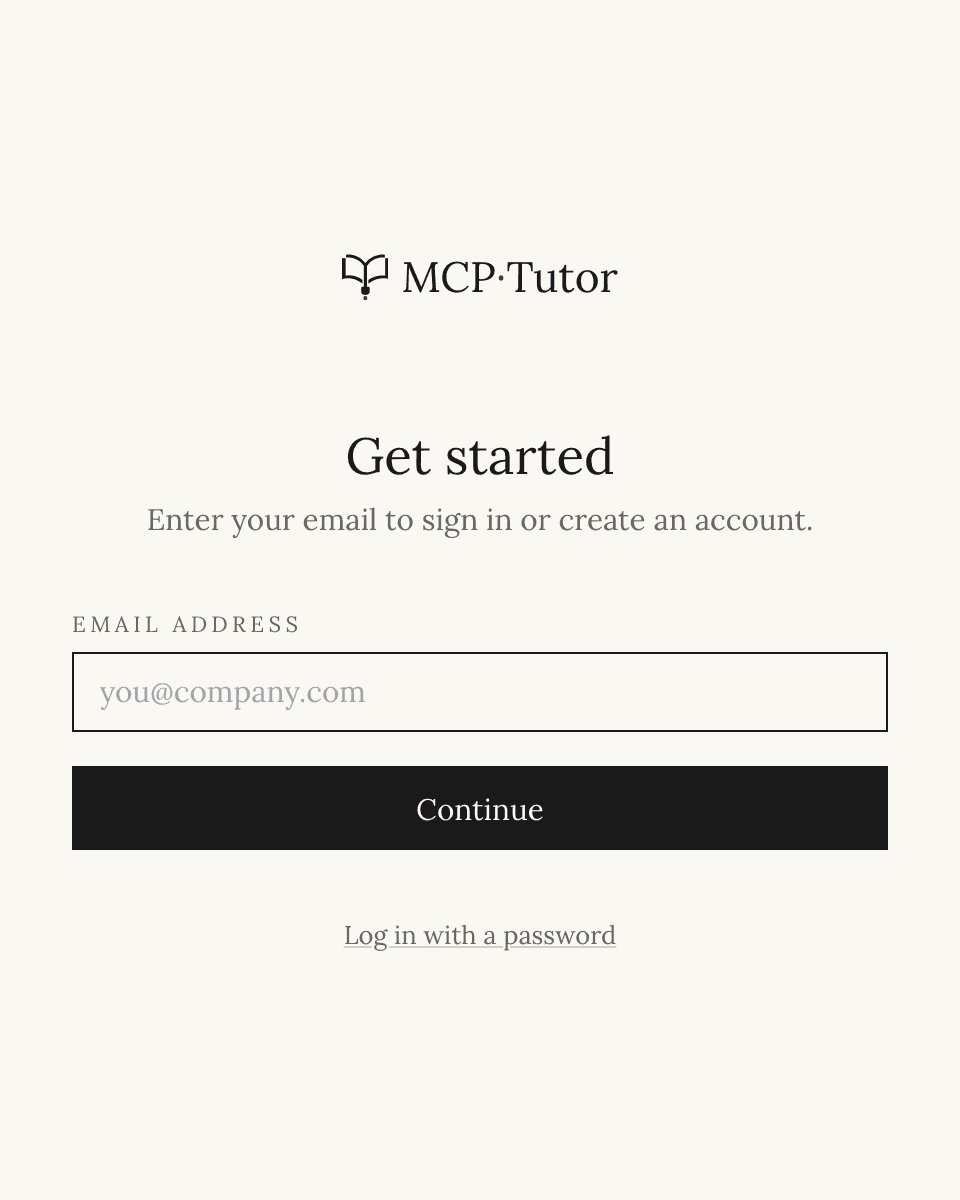
Perplexity opens MCP Tutor’s sign-in page. Enter your email and the code we send you, or choose Log in with a password.
No MCP Tutor account yet? The same page creates a free one.
Opens the full-size screenshot Approve the connection
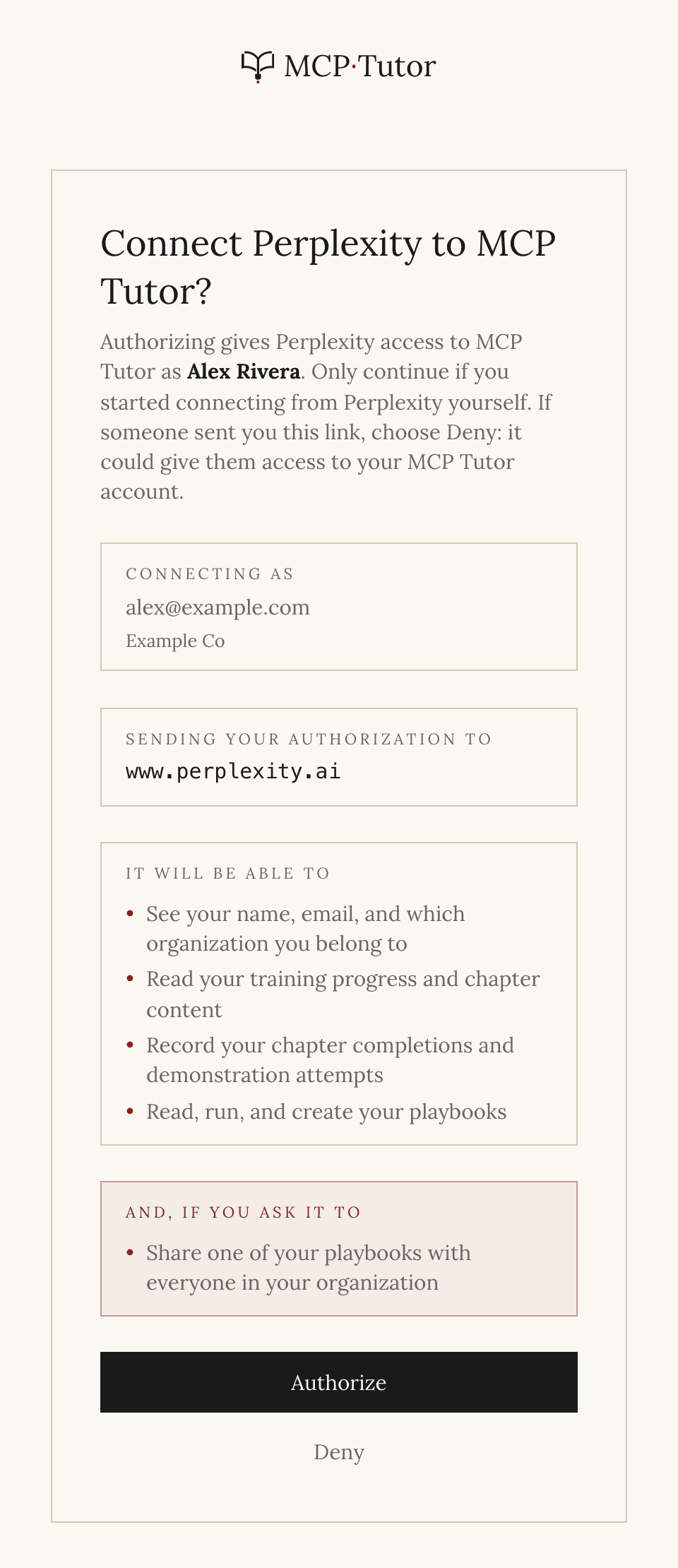
Check that MCP Tutor says it’s sending your authorization to www.perplexity.ai, then choose Authorize. That address is how you know the request really came from Perplexity.
On Perplexity Enterprise the address is enterprise.perplexity.ai.
Opens the full-size screenshot
For Enterprise admins
Custom connectors are off for members until an admin allows them.
Allow members, or add it for everyone
Turn on Allow members to add custom connectors, or open Organization settings → Connectors, choose Custom connector, and add MCP Tutor with this URL:
https://mcp.mcptutor.com/perplexity/mcpConnectors added for the organization start switched off.
Ask your team to connect
Each person switches MCP Tutor on and signs in as themselves.
Start learning
Say this in a new chat
“Use MCP Tutor to start my training.”
Naming MCP Tutor tells Perplexity which tools to use. You can also pick it with @.
If something goes wrong
- Perplexity answers without using MCP Tutor.
Check that MCP Tutor is switched on, and that Sources isn’t limited to Web, Academic or Social: connectors don’t run then.
- I don't see Add custom.
Custom connectors need Pro, Max or Enterprise. In an Enterprise organization, ask an admin to allow them.
- The sign-in didn't finish.
Select the MCP Tutor card again to restart it. Still stuck? Email support@mcptutor.com.
Still stuck? Email support@mcptutor.com and tell us which step you’re on.