Add MCP Tutor to Gemini
Add MCP Tutor as a custom app in Gemini on the web, sign in once, and call it with @ in any chat, on the web or in the Gemini app on your phone.
Before you start
- A personal Google Account (not work or school), age 18 or over, in the US, with Gemini in English and Keep Activity turned on. These are Google’s rules for custom apps.
- A browser: custom apps can only be added in the Gemini web app, at gemini.google.com. After that, MCP Tutor works in the Gemini mobile app too.
- Using Gemini at work through Gemini Enterprise? Your admins set it up instead: see Gemini Enterprise.
Connect on gemini.google.com
Open Connected Apps
On gemini.google.com, click Settings at the bottom, then Connected Apps. On newer layouts, choose Customize in the sidebar, then Connectors.
Add a custom app
Under Custom apps, choose Add a custom app, paste this URL, and click Next:
https://mcp.mcptutor.com/gemini/mcpAccept and connect
Leave Client ID and Client secret empty: MCP Tutor registers Gemini by itself. Tick I understand and accept the security and privacy risks of connecting this custom app, then click Connect.
Sign in to MCP Tutor
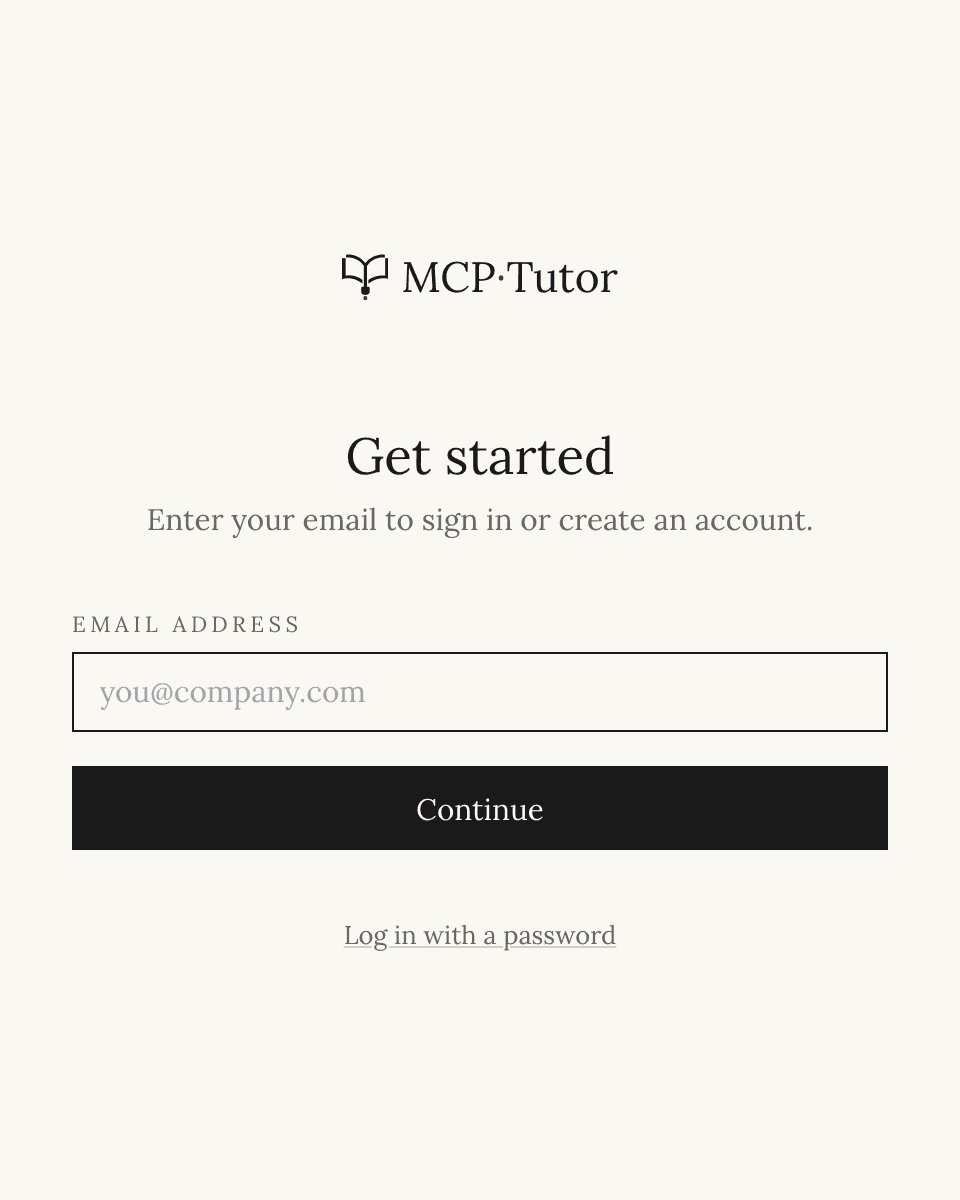
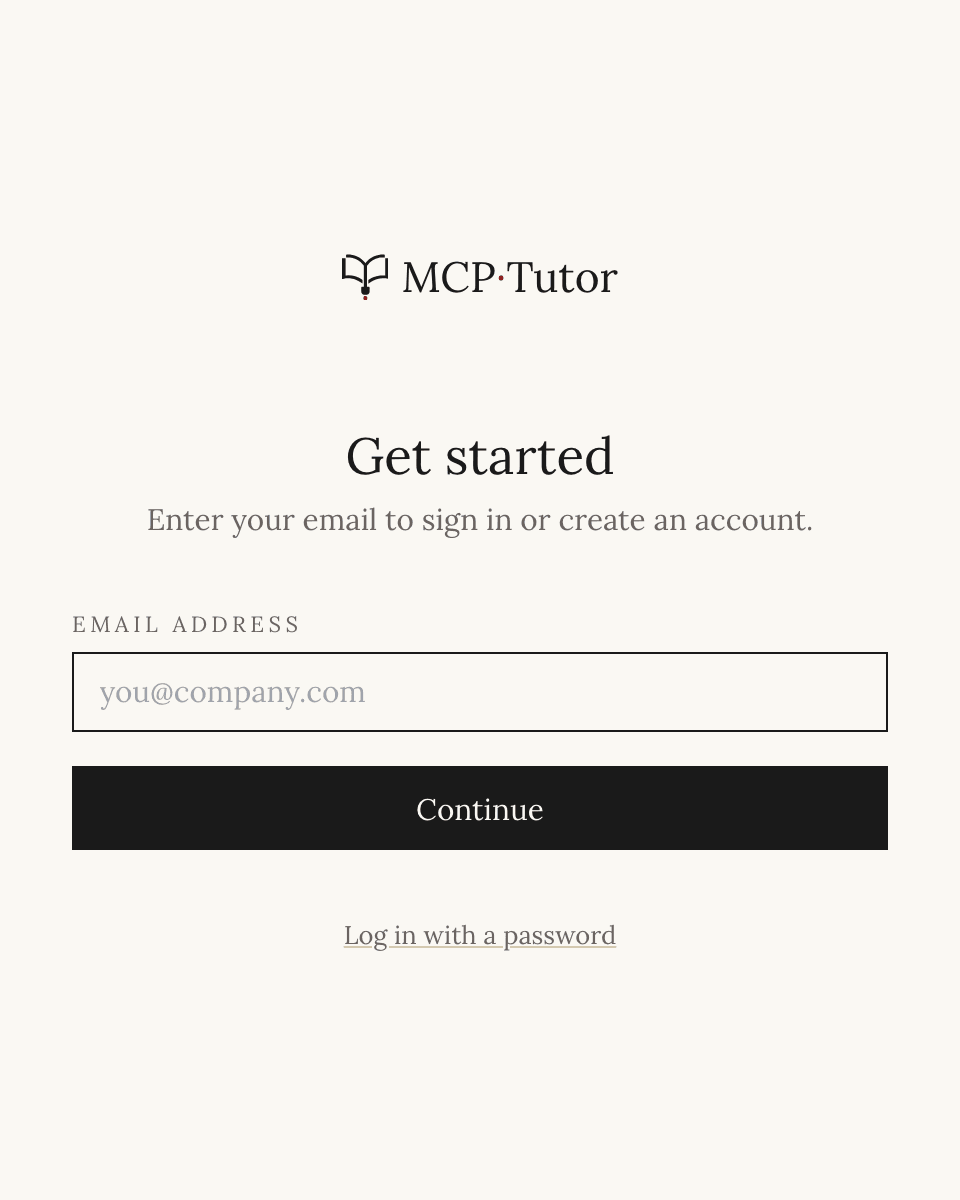
Gemini opens MCP Tutor’s sign-in page. Enter your email and the code we send you, or choose Log in with a password.
No MCP Tutor account yet? The same page creates a free one.
Opens the full-size screenshot Approve the connection
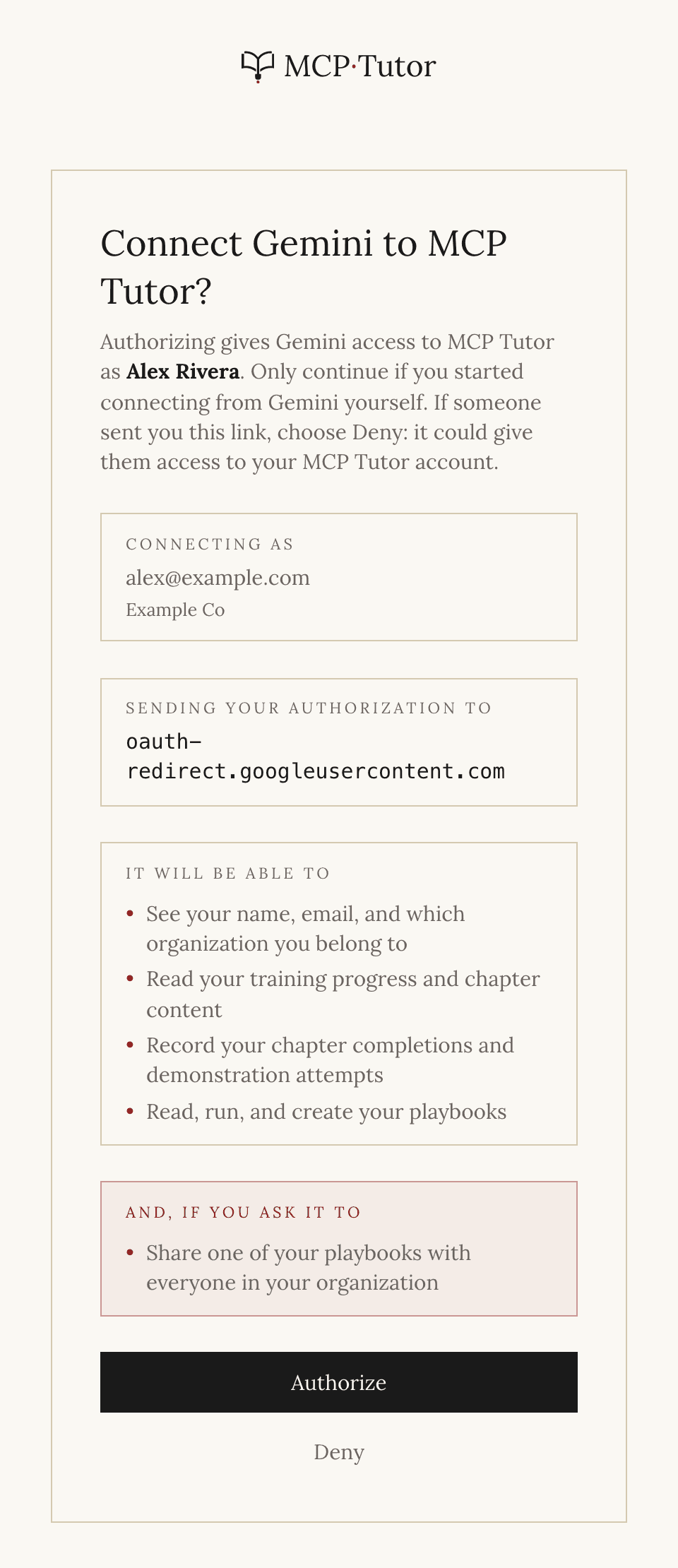
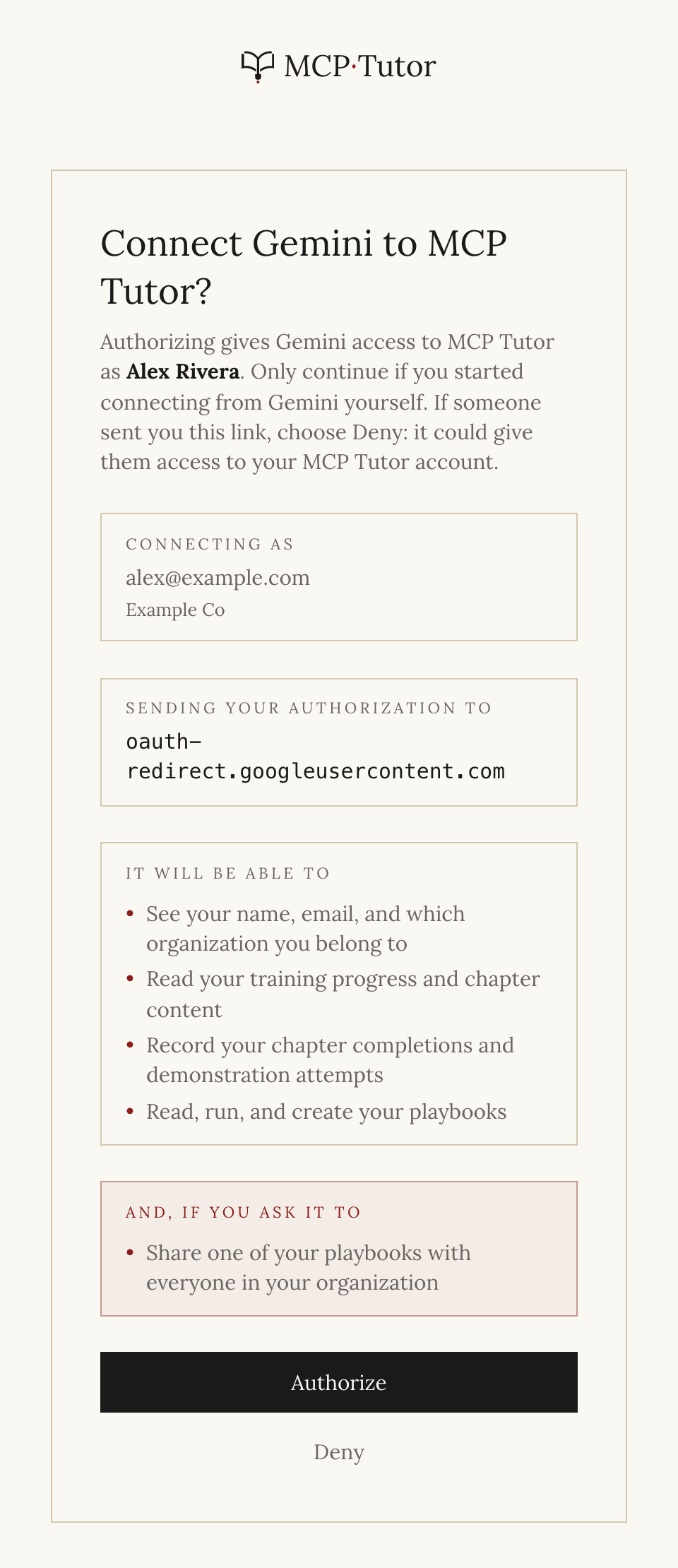
Check that MCP Tutor says it’s sending your authorization to oauth-redirect.googleusercontent.com, then choose Authorize. That address is how you know the request really came from Gemini.
That’s Google’s sign-in address for custom apps.
Opens the full-size screenshot Save the app
When Gemini shows Save your custom app, keep the name MCP Tutor and click Connect.
Use it in a chat
Type @ in a chat and choose MCP Tutor.
Gemini Enterprise
For companies on Google’s Gemini Enterprise, with an MCP Tutor organization on the Business plan. Two admins take part: an MCP Tutor admin creates credentials, and a Google Cloud admin with the Discovery Engine Editor role adds MCP Tutor in the Google Cloud console.
Create credentials in MCP Tutor
An MCP Tutor admin opens Team → Settings → Gemini Enterprise and creates a client ID and secret. That page also lists every value for the next steps.
Add a custom MCP server
In the Google Cloud console, open Gemini Enterprise → Apps, choose your app, then Connected Data Stores → New data store. Search for Custom MCP Server and choose Add MCP server.
Fill in OAuth 2.0
Under OAuth 2.0, enter the client ID and secret from MCP Tutor and these values:
- MCP Server URL
https://mcp.mcptutor.com/gemini/mcp- Authorization URL
https://mcp.mcptutor.com/gemini/oauth/authorize- Token URL
https://mcp.mcptutor.com/gemini/oauth/token- Scopes
read:progress write:progress offline_access
Turn on Enable PKCE Support: MCP Tutor refuses sign-ins without it. Then click Verify Auth.
Verify and create
Whoever clicks Verify Auth signs in to MCP Tutor, so they must already be a member of your MCP Tutor organization. Then choose a region and a name and click Create. When the data store is Active, open Actions, choose Reload custom actions, and enable them.
Everyone connects
Each person opens Manage your data in Gemini Enterprise, enables MCP Tutor’s actions, and signs in as themselves.
Start learning
Say this in a new chat
“Start my training in MCP Tutor.”
Type @ and choose MCP Tutor first. Once it’s connected, this works in the Gemini app on your phone too.
If something goes wrong
- I don't see Custom apps or Add a custom app.
Google only offers custom apps to personal Google Accounts in the US, for people 18 or over, with Gemini in English and Keep Activity on. Work and school accounts can’t add them; use Gemini Enterprise instead.
- I'm on my phone.
Custom apps can only be added in the Gemini web app. Open gemini.google.com in a browser to add MCP Tutor; after that it works in the Gemini app too.
- Gemini Enterprise says “This app didn't send a PKCE challenge”.
Turn on Enable PKCE Support in the data store’s OAuth 2.0 settings, then click Verify Auth again.
- Can I use Antigravity CLI or Gemini CLI?
Yes. Sign in and open your Account page: under Connect your AI, choose Gemini for the setup for each, with your private token filled in.
Still stuck? Email support@mcptutor.com and tell us which step you’re on.